
Managing Dotfiles on a Linux Server: Setup & Best Practices
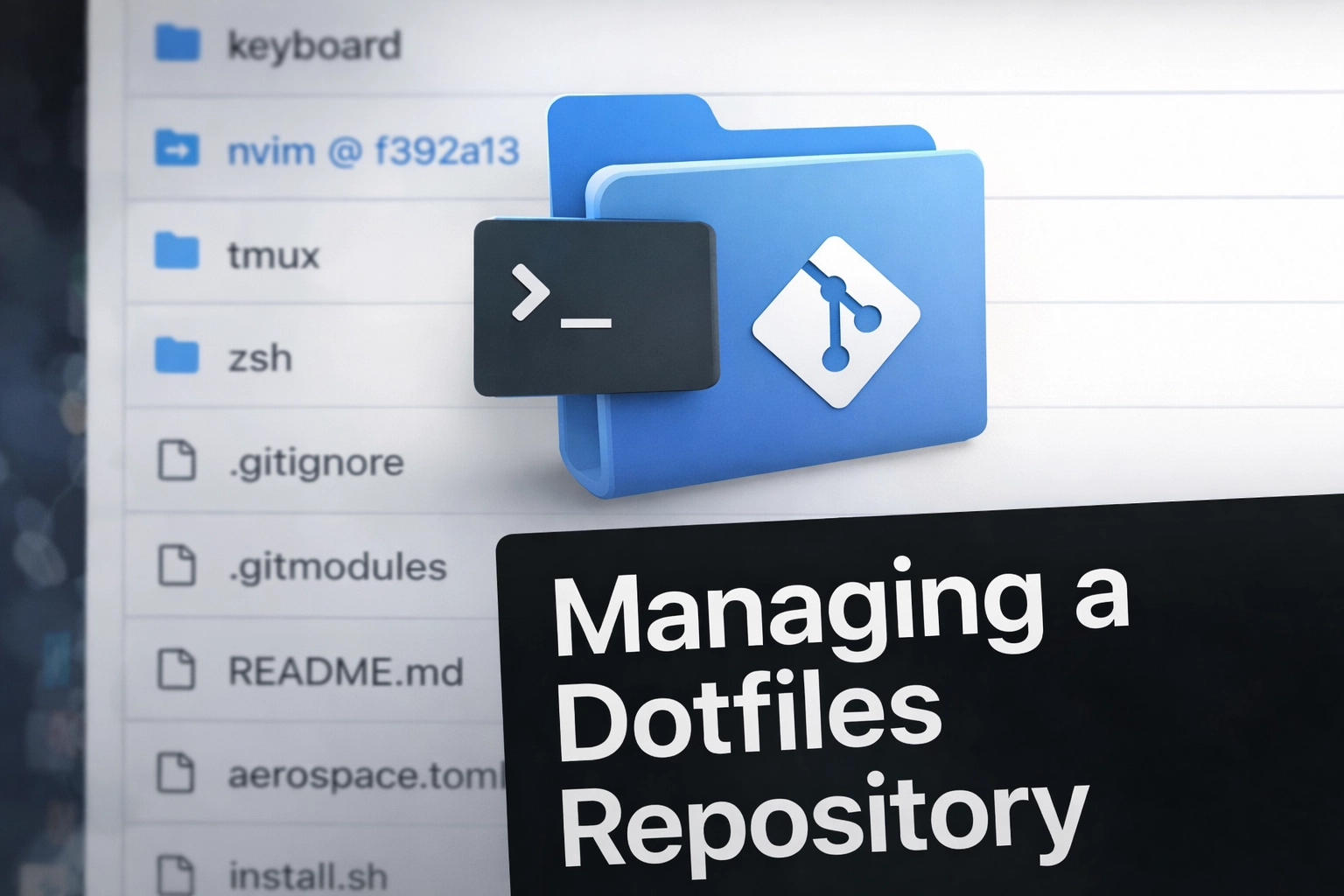
Managing Dotfiles on a Linux Server:
Setup & Best Practices
A practical guide to versioning, syncing, and bootstrapping your shell environment - with real examples drawn from a battle-tested dotfiles repo.
01 // What Are Dotfiles and Why Track Them?
Dotfiles are the hidden configuration files that live in your home directory - .zshrc, .tmux.conf, .gitconfig and dozens more. They encode years of muscle memory: your aliases, your keybindings, your editor preferences. On a fresh server, without them, you're starting blind.
Tracking dotfiles in a Git repository gives you three superpowers: reproducibility (spin up a new machine in minutes), history (roll back a bad config change), and portability (keep your local dev and every remote server in sync).
curl -fsSL https://raw.githubusercontent.com/sniezeek/.dotfiles/main/install.sh | bash
02 // Repository Structure
A clean dotfiles repo separates concerns by tool. Here's the layout used in the example repo:
.dotfiles/
├── zsh/
│   ├── .zshrc          # main shell config
│   └── .zprofile       # login shell env (PATH etc.)
├── tmux/
│   ├── .tmux.conf      # tmux settings & bindings
│   └── tmux-sessionizer # fuzzy project launcher script
├── nvim/               # git submodule → separate repo
├── keyboard/
│   └── dvorak.keylayout
├── install.sh          # bootstrap everything
├── .gitmodules         # nvim as submodule
└── .gitignore          # .DS_Store etc.
Grouping by tool (rather than dumping everything flat) makes it trivial to symlink only what you need on a headless server - skip the keyboard layout, skip the GUI apps, link only zsh/ and tmux/.
ln -sf ~/dotfiles/zsh/.zshrc ~/.zshrc so the file in your home directory always reflects the repo. Changes take effect immediately and git diff shows you what changed.
03 // Zsh Configuration
# .zshrc - the full picture
The .zshrc in this repo is a good example of layering: framework first, then PATH exports, then aliases, then custom shell functions.
# Oh My Zsh - plugin framework
export ZSH="$HOME/.oh-my-zsh"
ZSH_THEME="robbyrussell"
plugins=(git)
source $ZSH/oh-my-zsh.sh

# PATH - homebrew binaries first
export PATH="/opt/homebrew/bin:/opt/homebrew/sbin:$PATH"
PATH="$PATH:$HOME/.local/scripts/"   # personal scripts

# Aliases - short forms for daily commands
alias vim='nvim'
alias python='python3'
alias dcu='docker compose up -d --build'
alias dcd='docker compose down'

# Tmux sessionizer - Ctrl+F opens fuzzy project picker
bindkey -s ^f "tmux-sessionizer\n"
# vnv() - smart virtualenv activation
One of the most useful functions in this config handles Python virtual environments. It tries venv/ first, then falls back to .venv/, so it works with both naming conventions.
vnv() {
    if [ -f venv/bin/activate ]; then
        source venv/bin/activate
    elif [ -f .venv/bin/activate ]; then
        source .venv/bin/activate
    else
        echo "❌ No venv or .venv found"
    fi
}
# pf() - fzf-powered file navigator
The pf function combines find with fzf to let you jump directly into any project directory. It prunes node_modules, .git, and venv to keep the list clean.
pf() {
  local dir
  dir=$(find ~/Downloads ~/Documents ~/.config \
    -type d \( \
      -name "node_modules" -o \
      -name ".git"         -o \
      -name "venv"         \
    \) -prune \
    -o -type f -print \
    | fzf | xargs dirname)
  if [[ -n "$dir" ]]; then
    cd "$dir"
  fi
}
# .zprofile - login shell PATH
The .zprofile is sourced only for login shells and is the right place for PATH mutations that must happen before anything else, like Homebrew's own environment setup.
# Python 3.11 binaries take priority
PATH="/Library/Frameworks/Python.framework/Versions/3.11/bin:${PATH}"
export PATH

# Initialise Homebrew (sets HOMEBREW_PREFIX, MANPATH, etc.)
eval "$(/opt/homebrew/bin/brew shellenv)"
.zprofile (login shell). Put aliases, functions, and oh-my-zsh loading in .zshrc (interactive shell). Mixing them leads to subtly broken behaviour in scripts and SSH sessions.
04 // Tmux Setup & Sessionizer
# .tmux.conf - sensible defaults
The tmux config in this repo does three important things: fixes the prefix key to Ctrl-a (easier to reach than the default Ctrl-b), enables 256-colour true-colour passthrough, and adds Vim-style pane navigation.
# True-colour support
set -ga terminal-overrides ",screen-256color*:Tc"
set-option -g default-terminal "screen-256color"

# Remap prefix to Ctrl-a
unbind C-b
set-option -g prefix C-a
bind-key C-a send-prefix

# Reload config with prefix + r
bind r source-file ~/.tmux.conf

# Start window numbering at 1 (not 0)
set -g base-index 1

# Vim-style pane navigation
bind -r k select-pane -U
bind -r j select-pane -D
bind -r h select-pane -L
bind -r l select-pane -R

# Vi copy-mode with clipboard integration
set-window-option -g mode-keys vi
bind -T copy-mode-vi v send-keys -X begin-selection
bind -T copy-mode-vi y send-keys -X copy-pipe-and-cancel 'xclip -in -selection clipboard'

# Sessionizer keybinding (prefix + f)
bind-key -r f run-shell "tmux neww ~/.local/bin/tmux-sessionizer"

# Plugins via TPM
set -g @plugin 'tmux-plugins/tpm'
set -g @plugin 'tmux-plugins/tmux-sensible'
set -g @plugin 'tmux-plugins/tmux-resurrect'
set -g @plugin 'dracula/tmux'
# Dracula status bar
The status bar is styled with the Dracula theme showing battery, RAM, and CPU usage with a custom dark blue background.
set -g @dracula-plugins "battery ram-usage cpu-usage"
set -g @dracula-colors "
dark_blue='#232c52'
"
set -g @dracula-ram-usage-colors     "dark_blue white"
set -g @dracula-battery-colors       "dark_blue white"
set -g @dracula-cpu-usage-colors     "dark_blue white"
set -g @dracula-show-powerline       true
set -g @dracula-show-flags           false
set -g @dracula-show-fahrenheit      false

run '~/.tmux/plugins/tpm/tpm'
# tmux-sessionizer - fuzzy project launcher
This is the crown jewel of the setup. Hit Ctrl-F in any terminal and you get an fzf picker over all your project directories. Selecting one instantly creates (or switches to) a named tmux session rooted at that directory.
#!/usr/bin/env bash

# Accept a directory as argument, or pick one with fzf
if [[ $# -eq 1 ]]; then
    selected=$1
else
    selected=$(find ~/Documents ~/Downloads ~/.config \
        -mindepth 1 -maxdepth 4 -type d \
        | fzf)
fi

[[ -z $selected ]] && exit 0

# Session name: basename with dots replaced by underscores
selected_name=$(basename "$selected" | tr . _)
tmux_running=$(pgrep tmux)

# Case 1: not inside tmux, tmux not running → new session
if [[ -z $TMUX ]] && [[ -z $tmux_running ]]; then
    tmux new-session -s $selected_name -c $selected
    exit 0
fi

# Case 2: session doesn't exist yet → create detached
if ! tmux has-session -t=$selected_name 2>/dev/null; then
    tmux new-session -ds $selected_name -c $selected
fi

# Case 3: switch to existing session
if [[ -z $TMUX ]]; then
    tmux attach -t $selected_name
else
    tmux switch-client -t $selected_name
fi
tmux-sessionizer to ~/.local/bin/tmux-sessionizer and ensure ~/.local/bin is on your PATH. The script is then reachable both from the tmux binding and from the shell function in .zshrc.
05 // Automated Bootstrap Script
The install.sh script handles everything needed to get Neovim up and running from scratch: it detects the OS, installs Neovim, clones the config repository, and sets up the lazy.nvim plugin manager.
#!/usr/bin/env bash
set -e   # abort on first error

REPO_URL="https://github.com/sniezeek/nvim.git"
CONFIG_DIR="$HOME/.config/nvim"

################################
# 1. Install Neovim (if needed)
################################
install_nvim() {
    if command -v nvim >/dev/null 2>&1; then
        echo "[OK] Neovim already installed."
        return
    fi
    if [[ "$OSTYPE" == "linux-gnu"* ]]; then
        sudo apt update && sudo apt install -y neovim
    elif [[ "$OSTYPE" == "darwin"* ]]; then
        brew install neovim
    else
        echo "Unsupported OS: $OSTYPE"; exit 1
    fi
}

################################
# 2. Clone Neovim config
################################
install_config() {
    rm -rf "$CONFIG_DIR"
    git clone "$REPO_URL" "$CONFIG_DIR"
}

################################
# 3. Bootstrap lazy.nvim
################################
install_lazy() {
    git clone --filter=blob:none \
        https://github.com/folke/lazy.nvim.git \
        ~/.local/share/nvim/lazy/lazy.nvim
}

install_nvim
install_config
install_lazy

echo "=== Done! Run: nvim ==="
The script follows the "function-per-concern" pattern: each step is isolated, idempotent where possible, and easy to skip or reorder. The top-level set -e ensures the whole thing aborts cleanly if any step fails.
06 // Git & Submodules
The Neovim config lives in its own repository and is wired in as a Git submodule. This keeps the Neovim config independently versionable while still being pulled in by a single git clone --recurse-submodules.
[submodule "nvim"]
    path  = nvim
    url   = https://github.com/sniezeek/nvim.git
# macOS metadata
.DS_Store
Key submodule commands to remember:
| Command | What it does |
|---|---|
git clone --recurse-submodules <url> |
Clone repo + all submodules in one shot |
git submodule update --init --recursive |
Init + pull submodules after a plain clone |
git submodule update --remote |
Pull latest from each submodule's upstream |
git submodule foreach git pull |
Run git pull in every submodule |
07 // Best Practices
# 1. Use symlinks, not copies
Your home directory's config files should be symlinks back into the repo. A minimal setup script:
DOTFILES="$HOME/.dotfiles"

ln -sf "$DOTFILES/zsh/.zshrc"      ~/.zshrc
ln -sf "$DOTFILES/zsh/.zprofile"   ~/.zprofile
ln -sf "$DOTFILES/tmux/.tmux.conf" ~/.tmux.conf
ln -sf "$DOTFILES/tmux/tmux-sessionizer" \
        ~/.local/bin/tmux-sessionizer
# 2. Keep secrets out
Never commit API keys, tokens, or passwords. Source a separate file that is not tracked by git:
# Load secrets from a file that is .gitignored
[ -f "$HOME/.zsh_secrets" ] && source ~/.zsh_secrets
# 3. Separate login vs interactive config
As seen in this repo: environment variables and PATH go in .zprofile (login shells only). Aliases, functions, and framework loading go in .zshrc (every interactive session). This prevents PATH duplication in nested shells.
# 4. Idempotent install scripts
Check before installing. The install.sh above shows the pattern: command -v nvim returns early if Neovim is already present. Apply this to every step - your script should be safe to run twice.
# 5. Tag OS-specific code clearly
if [[ "$(uname)" == "Darwin" ]]; then
    # macOS-only: Homebrew path, terminal-notifier, etc.
    export PATH="/opt/homebrew/bin:$PATH"
elif [[ "$(uname)" == "Linux" ]]; then
    # Linux-only: xclip, apt-managed paths, etc.
    export PATH="$HOME/.local/bin:$PATH"
fi
# 6. Document with inline comments
The best dotfiles are self-documenting. Every non-obvious setting should have a comment. Future you - or a new team member - will thank you when you can read why a setting exists, not just what it does.
curl -fsSL https://raw.githubusercontent.com/sniezeek/.dotfiles/main/install.sh | bash
Managing dotfiles well is a compounding investment. The hour you spend today wiring up symlinks, writing a bootstrap script, and adding a submodule for your editor config will pay dividends every time you touch a new server - and every time a teammate says "can you share your setup?"


